# How to Create a Signal?

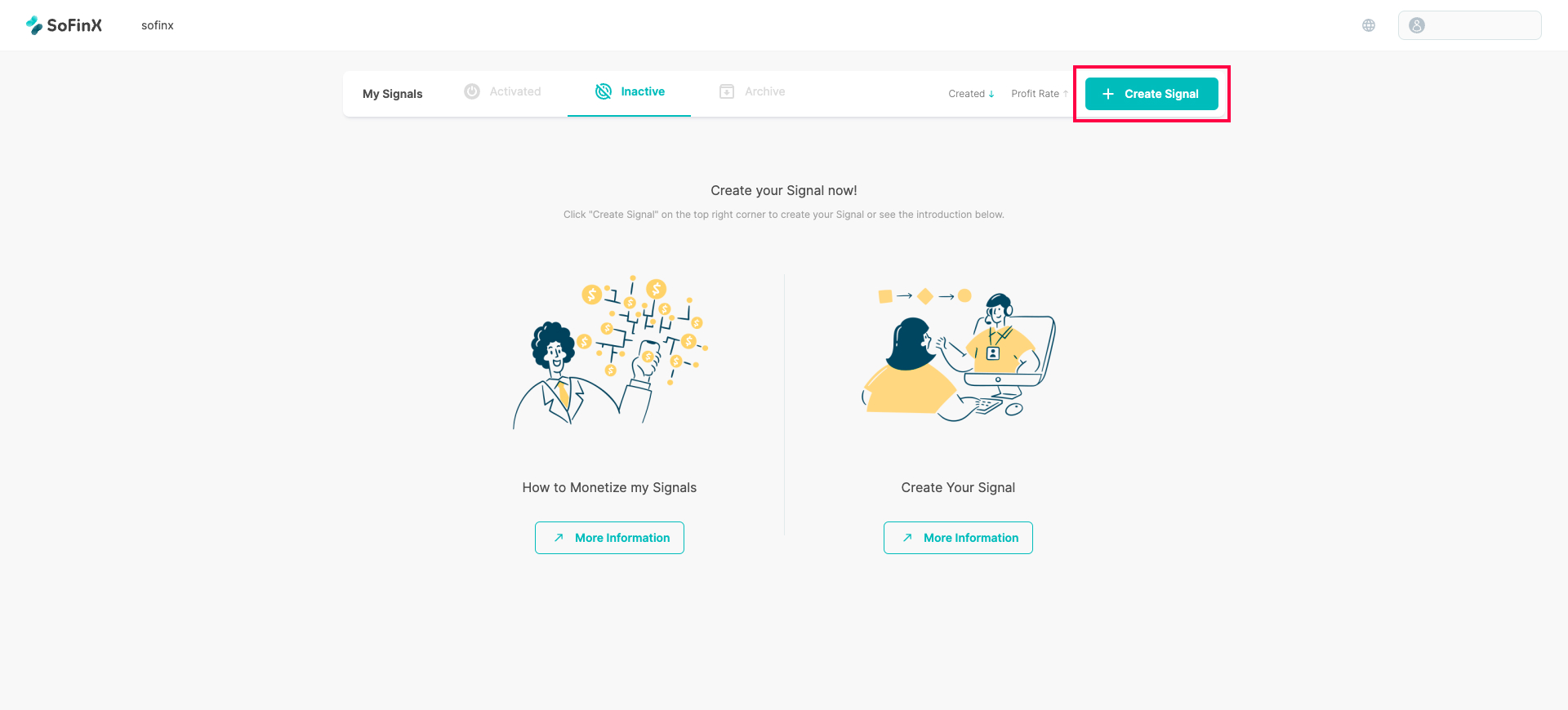
1. Click “+ Create Signal” on the top right corner and choose your platform, give a name for your Signal and introduce a little bit about your Signal, then click “Next”.

<figure><img src="https://content.gitbook.com/content/oSiMTv6alGbmysvZWQkm/blobs/Lz7NxqQ3yVwUhVJQPBsQ/Guide%20for%20Signal_How%20to%20Create%20a%20Signal__1.jpg" alt="" width="563"><figcaption></figcaption></figure>

2. The available signal source platforms for input are currently "MT Platform" and "Binance."

<figure><img src="https://3218376746-files.gitbook.io/~/files/v0/b/gitbook-x-prod.appspot.com/o/spaces%2FoSiMTv6alGbmysvZWQkm%2Fuploads%2FSnqBe6Jiih71hB8CuADQ%2FCleanShot%202024-07-24%20at%2016.14.35%402x.png?alt=media&#x26;token=736e8626-f657-443c-9d17-0b034c3578fe" alt="" width="563"><figcaption></figcaption></figure>

3. Please provide the name and description of the signal source.

<figure><img src="https://3218376746-files.gitbook.io/~/files/v0/b/gitbook-x-prod.appspot.com/o/spaces%2FoSiMTv6alGbmysvZWQkm%2Fuploads%2FJAxgoq2oNHUQqOSGj8bw%2FCleanShot%202024-07-24%20at%2016.15.25%402x.png?alt=media&#x26;token=91dc8482-8a24-4309-a900-612f45dccc61" alt="" width="563"><figcaption></figcaption></figure>

4. Please choose the connection method. There are two options: **Link Account (MT4)** and **SoFinX Sync EA**.

<figure><img src="https://3218376746-files.gitbook.io/~/files/v0/b/gitbook-x-prod.appspot.com/o/spaces%2FoSiMTv6alGbmysvZWQkm%2Fuploads%2FjtBUPAXgsKuRBGT9gcCq%2FCleanShot%202024-07-24%20at%2016.16.10%402x.png?alt=media&#x26;token=b3f823c3-0021-42be-9011-dbc2bd523546" alt="" width="563"><figcaption></figcaption></figure>

## **Link Account (MT4)**

1. Select **Link Account (MT4)**

<figure><img src="https://3218376746-files.gitbook.io/~/files/v0/b/gitbook-x-prod.appspot.com/o/spaces%2FoSiMTv6alGbmysvZWQkm%2Fuploads%2FoZzdBNDaqWLnQ2B3ba2Q%2FCleanShot%202024-07-24%20at%2016.24.33%402x.png?alt=media&#x26;token=f183af5b-cce2-4ee1-b3a7-968bfdef7f93" alt="" width="563"><figcaption></figcaption></figure>

2. Please enter the MT-related information.

<figure><img src="https://3218376746-files.gitbook.io/~/files/v0/b/gitbook-x-prod.appspot.com/o/spaces%2FoSiMTv6alGbmysvZWQkm%2Fuploads%2FT3kQDcROKTTVBXDJVSh5%2FCleanShot%202024-07-24%20at%2016.25.10%402x.png?alt=media&#x26;token=d5cd233f-4b90-4f94-b606-ed9518aa3a1a" alt="" width="563"><figcaption></figcaption></figure>

3. Select the trading instruments. It is highly recommended to switch to "Symbol Pairing" to allow automatic matching of instruments.

<figure><img src="https://3218376746-files.gitbook.io/~/files/v0/b/gitbook-x-prod.appspot.com/o/spaces%2FoSiMTv6alGbmysvZWQkm%2Fuploads%2FzXBSAP5JkDIrtJC6sebe%2FCleanShot%202024-07-24%20at%2016.26.50%402x.png?alt=media&#x26;token=bf0093be-9c78-4a05-b7cb-c312ff2c53f5" alt="" width="563"><figcaption></figcaption></figure>

## **SoFinX Sync EA**

Operating an EA (Expert Advisor) can be relatively complex. Please follow the steps outlined in the following video tutorial.

{% embed url="<https://youtu.be/rV2i0MtwJ9Y>" %}

Finally, synchronize your trading instruments. Once the pairing is complete, your signal source setup is finished!

<figure><img src="https://3218376746-files.gitbook.io/~/files/v0/b/gitbook-x-prod.appspot.com/o/spaces%2FoSiMTv6alGbmysvZWQkm%2Fuploads%2F9nGaW4hP2tpB1WMnwTP1%2FCleanShot%202024-07-24%20at%2016.27.12%402x.png?alt=media&#x26;token=933b5ee4-90ac-4371-bf69-f876ddfb83ad" alt="" width="563"><figcaption></figcaption></figure>

<figure><img src="https://content.gitbook.com/content/oSiMTv6alGbmysvZWQkm/blobs/IqJWHjrRlBZmOquEEVtv/Guide%20for%20Signal_How%20to%20Create%20a%20Signal__5.jpg" alt="" width="563"><figcaption></figcaption></figure>

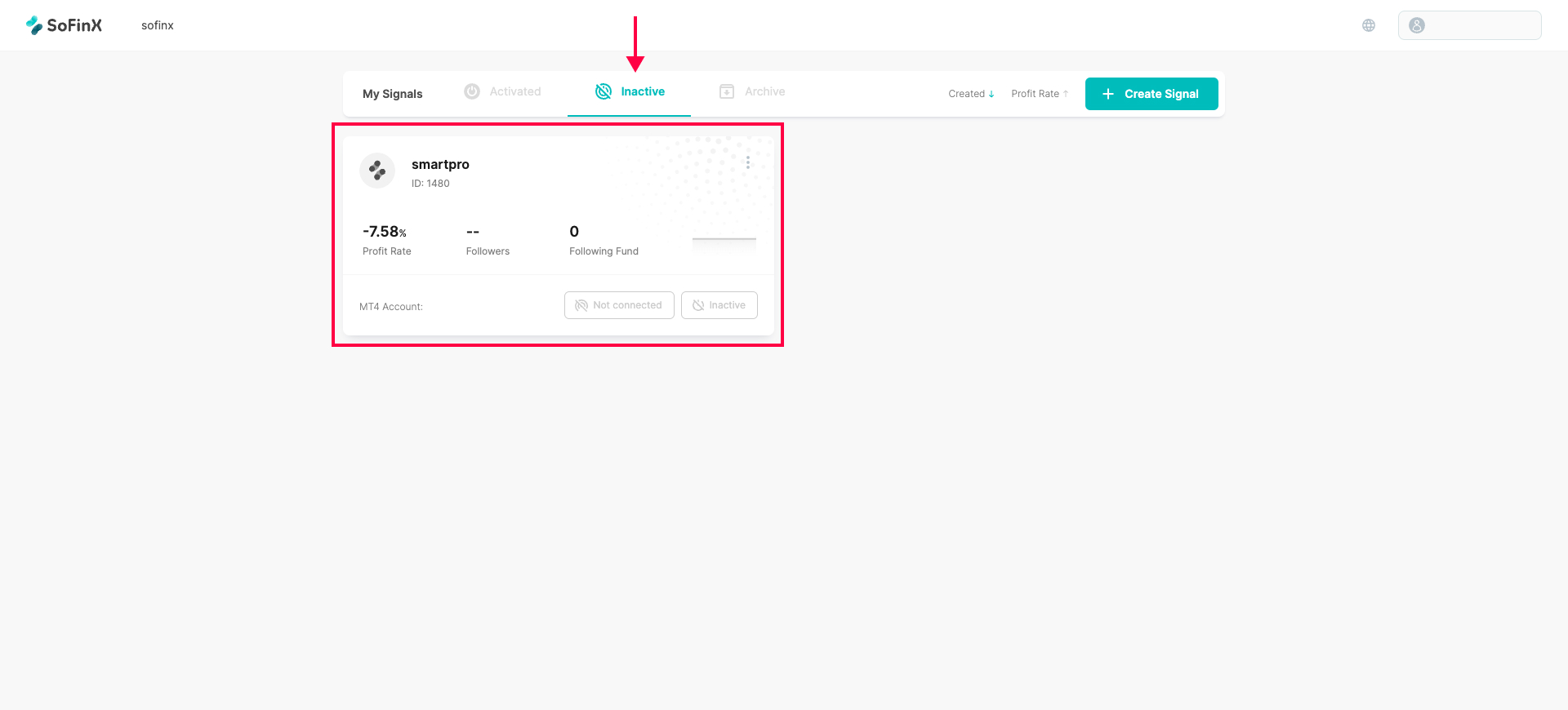
Now just need to go to Inactive page and see the signal you just created. and hover to Inactive bottom can see the “Activate Signal”

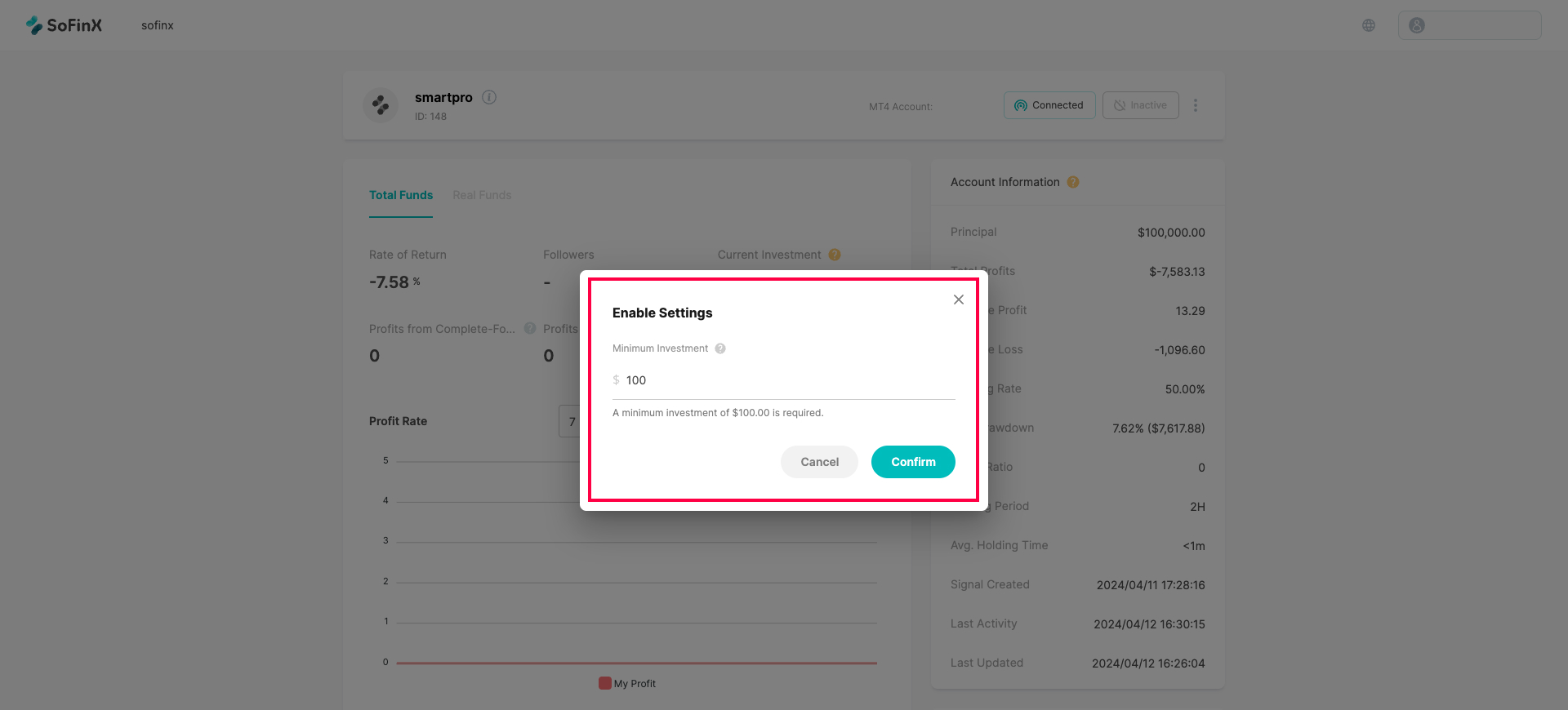
Click it and finish the enable settings, including the range of investment and profit share %

<figure><img src="https://content.gitbook.com/content/oSiMTv6alGbmysvZWQkm/blobs/ux3piLxiyNEeWyxMnxBK/Guide%20for%20Signal_How%20to%20Create%20a%20Signal__6.jpg" alt="" width="563"><figcaption></figcaption></figure>

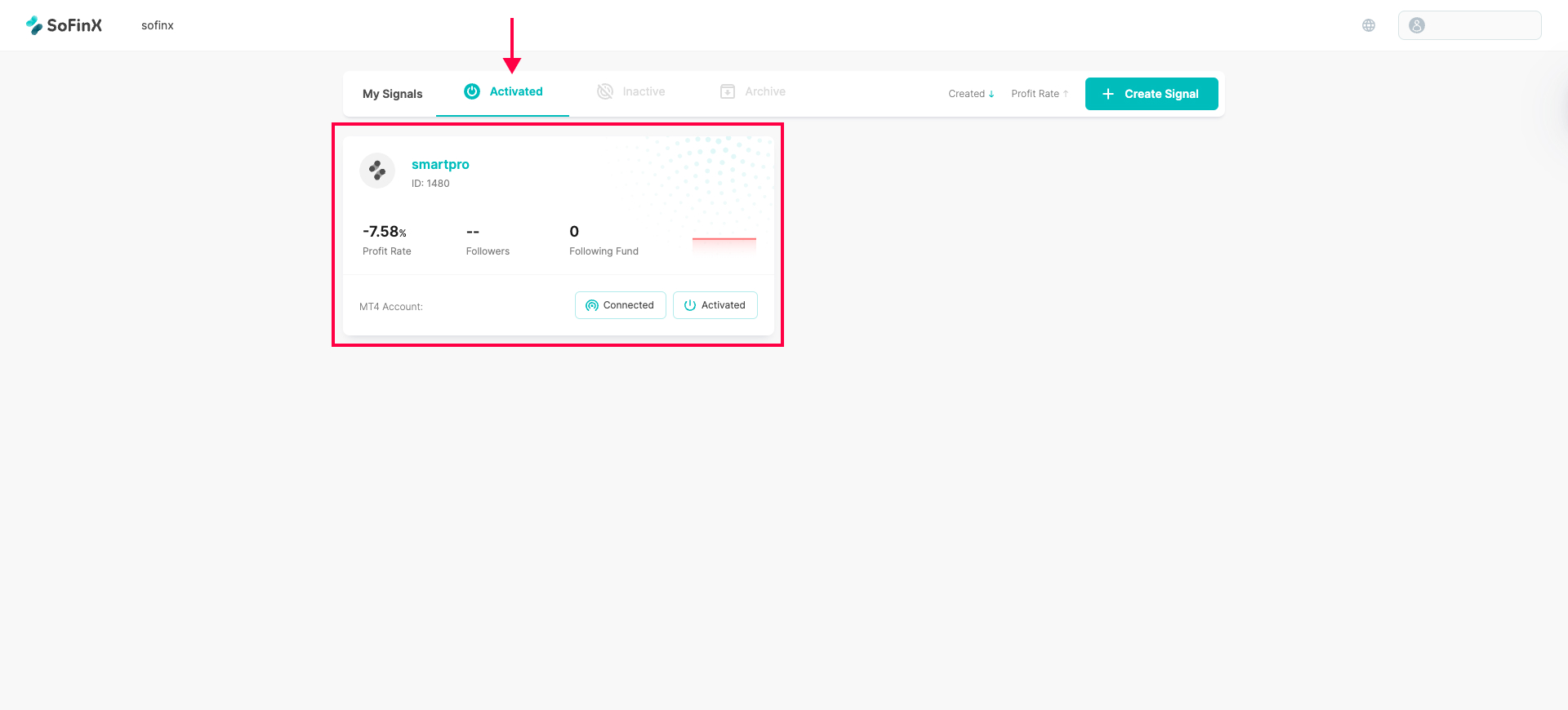
Congratulations ! You just make your signal go live! Moreover, you can click into the signal’ page to see more details!

<div><img src="https://i0.wp.com/sofinx.com/wp-content/uploads/2022/10/%E6%88%AA%E5%9C%96-2022-10-07-%E4%B8%8B%E5%8D%885.40.50-1024x503.png?resize=1024%2C503&#x26;ssl=1" alt=""> <figure><img src="https://content.gitbook.com/content/oSiMTv6alGbmysvZWQkm/blobs/WIjI3Wm2dcx1tXmM2jLa/Guide%20for%20Signal_How%20to%20Create%20a%20Signal__7.jpg" alt="" width="563"><figcaption></figcaption></figure></div>

[<< Back "Guide for Signal"](https://sofinx.gitbook.io/sofinx-help-center/help-center/guide-for-signal)